
Overview #
Easy Social Share Buttons for WordPress has an extensive list of automatic placement options for subscribe forms. But even that, you may need to place the form manually inside content.
This you can do using:
- Block Editor
- Elementor
- Shortcode
- Widget
You need to ensure that inside settings the option to use shortcode/widget is enabled.

Block Editor #

Elementor #

Widget #
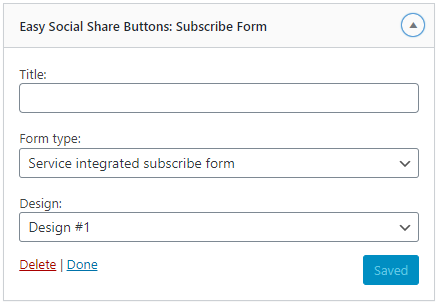
You can place the Easy Social Share Buttons: Subscribe Form widget to any sidebar you have on your site.
Shortcode #
To add subscribe form you can use the shortcode Subscribe to our mailing list and get interesting stuff and updates to your email inbox.Join our list #
Args #
| Argument | Description |
|---|---|
| design | TemplatePossible values
|
| twostep | Two step formPossible values
|
| twostep_text | Link text for the two step mode |
| twostep_inline | Show two step form inlinePossible values
|